


Automated Google Sheets imports/exports can be achieved through using the Pigment Import/Export API and GSheets Apps Scripting capability. It will need the following information:
1. Generate Pigment Import/Export API key
https://community.pigment.com/security-permissions-82/manage-api-keys-226
2. For Imports into Pigment (to understand the process)
https://community.pigment.com/importing-and-exporting-data-95/how-to-trigger-an-import-with-apis-230
3. For Exports from Pigment (to understand the process)
4. Write/Copy the GSheets App Script
First, open your GSheet, then go to 'Extensions > App Script'.
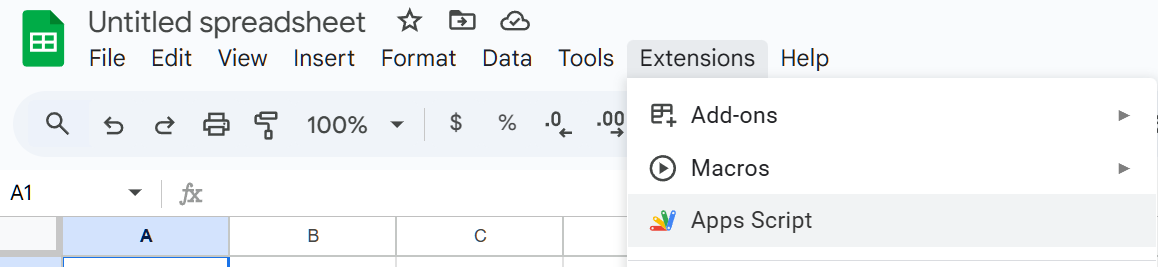
The scripts below can be copy and pasted into the App Script editor, just remember to press the ‘Save’ button.
Note: These scripts and scheduling steps may require Google Drive privileges to set.
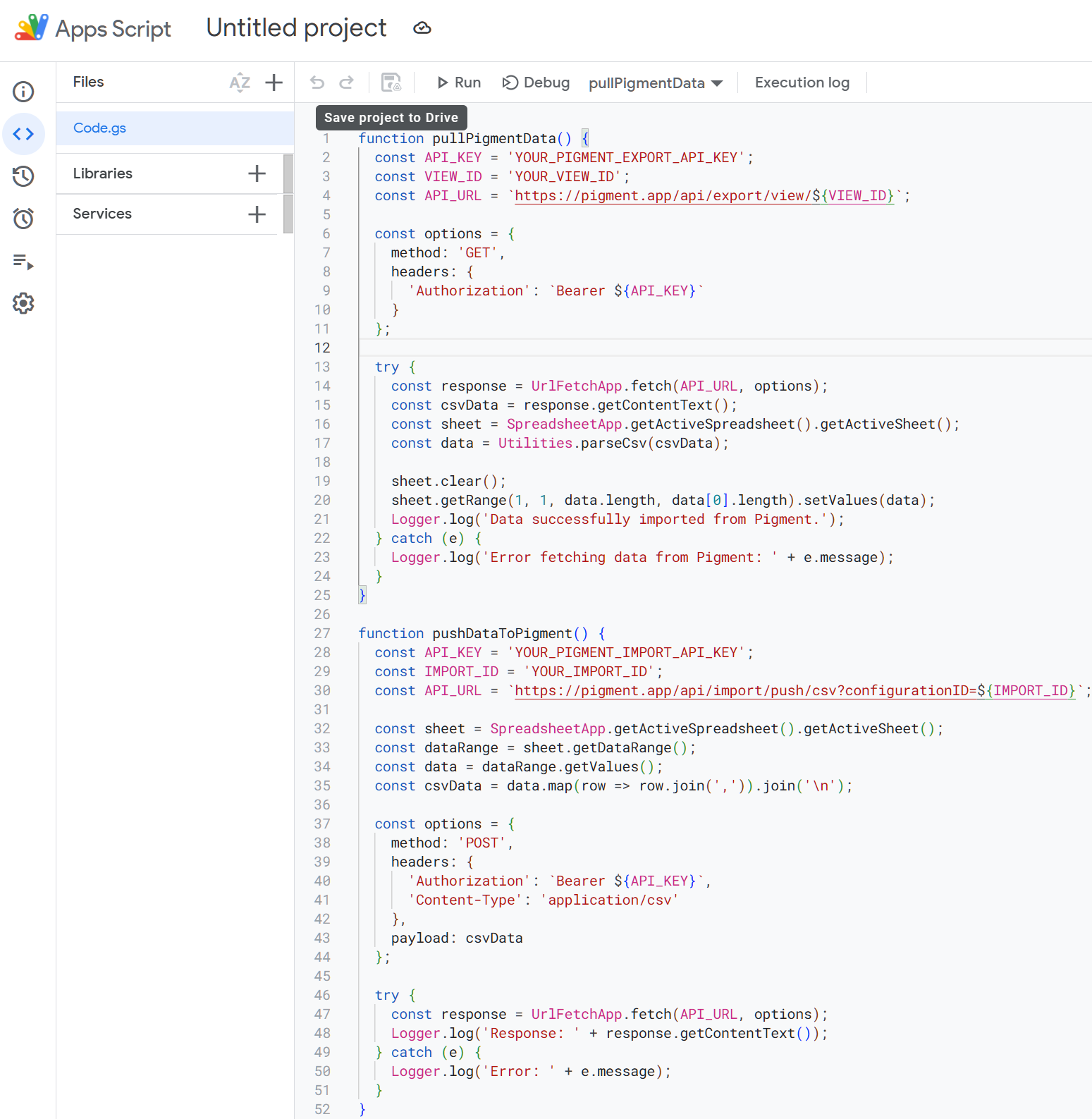
This is an example to pull (export) data from a defined view in Pigment into a GSheet.
function pullPigmentData() {
  const API_KEY = 'YOUR_PIGMENT_EXPORT_API_KEY';
  const VIEW_ID = 'YOUR_VIEW_ID';
  const API_URL = `https://pigment.app/api/export/view/${VIEW_ID}`;

  const options = {
    method: 'GET',
    headers: {
      'Authorization': `Bearer ${API_KEY}`
    }
  };

  try {
    const response = UrlFetchApp.fetch(API_URL, options);
    const csvData = response.getContentText();
    const sheet = SpreadsheetApp.getActiveSpreadsheet().getActiveSheet();
    const data = Utilities.parseCsv(csvData, ';'); // Specify ';' as the delimiter

    sheet.clear();
    sheet.getRange(1, 1, data.length, data[0].length).setValues(data);
    Logger.log('Data successfully imported from Pigment.');
  } catch (e) {
    Logger.log('Error fetching data from Pigment: ' + e.message);
  }
}
Explanation:
-
API Key and View ID: Replace
YOUR_PIGMENT_EXPORT_API_KEYandYOUR_VIEW_IDwith your actual Pigment API key and view ID. -
Fetch Data: The script fetches data from the Pigment API and parses it as CSV.
-
Export Data: The parsed data is then written to the active sheet in Google Sheets.
-
Error Handling: The script includes error handling to log any issues that occur during the data fetch process.
This is an example to push (import) data from a sheet in GSheets to Pigment.
function pushDataToPigment() {
  const API_KEY = 'YOUR_PIGMENT_IMPORT_API_KEY';
  const IMPORT_ID = 'YOUR_CONFIG_ID';
  const API_URL = `https://pigment.app/api/import/push/csv?configurationID=${IMPORT_ID}`;

  const sheet = SpreadsheetApp.getActiveSpreadsheet().getActiveSheet();
  const dataRange = sheet.getDataRange();
  const data = dataRange.getValues();
  const csvData = data.map(row => row.join(',')).join('\n');

  const options = {
    method: 'POST',
    headers: {
      'Authorization': `Bearer ${API_KEY}`,
      'Content-Type': 'application/csv'
    },
    payload: csvData
  };

  try {
    const response = UrlFetchApp.fetch(API_URL, options);
    Logger.log('Response: ' + response.getContentText());
  } catch (e) {
    Logger.log('Error: ' + e.message);
  }
}
Explanation:
-
API Key and Import ID: Replace
YOUR_PIGMENT_IMPORT_API_KEYandYOUR_CONFIG_IDwith your actual Pigment API key and import configuration ID. -
Fetch Data: The script fetches data from the active sheet in Google Sheets and converts it to CSV format.
-
Push Data: The script sends the CSV data to the Pigment API using a POST request.
-
Error Handling: The script includes error handling to log any issues that occur during the data push process.
5. The scheduling of the pull or push can be achieved using the following steps:
Click on the ‘Add Trigger’ button:
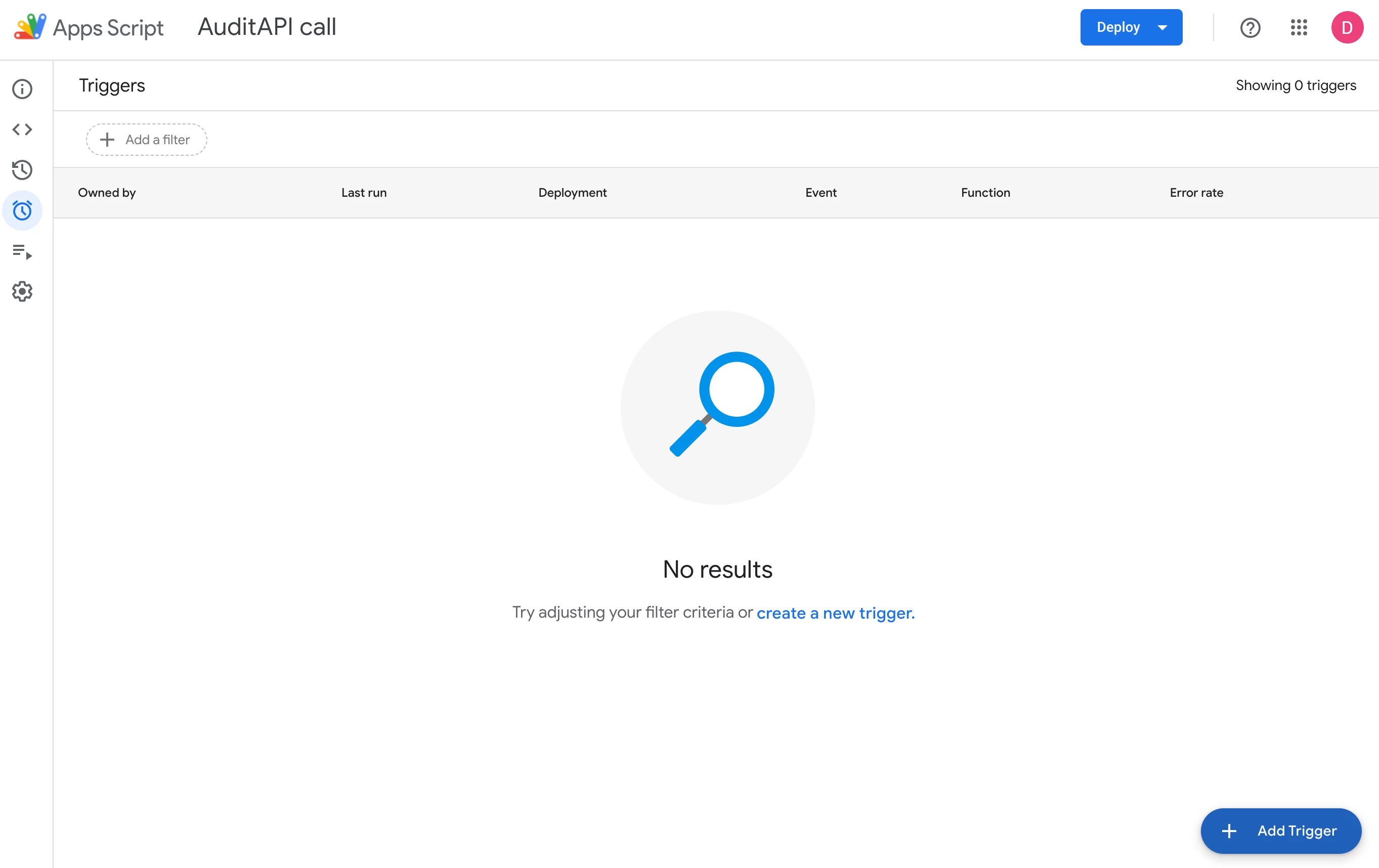
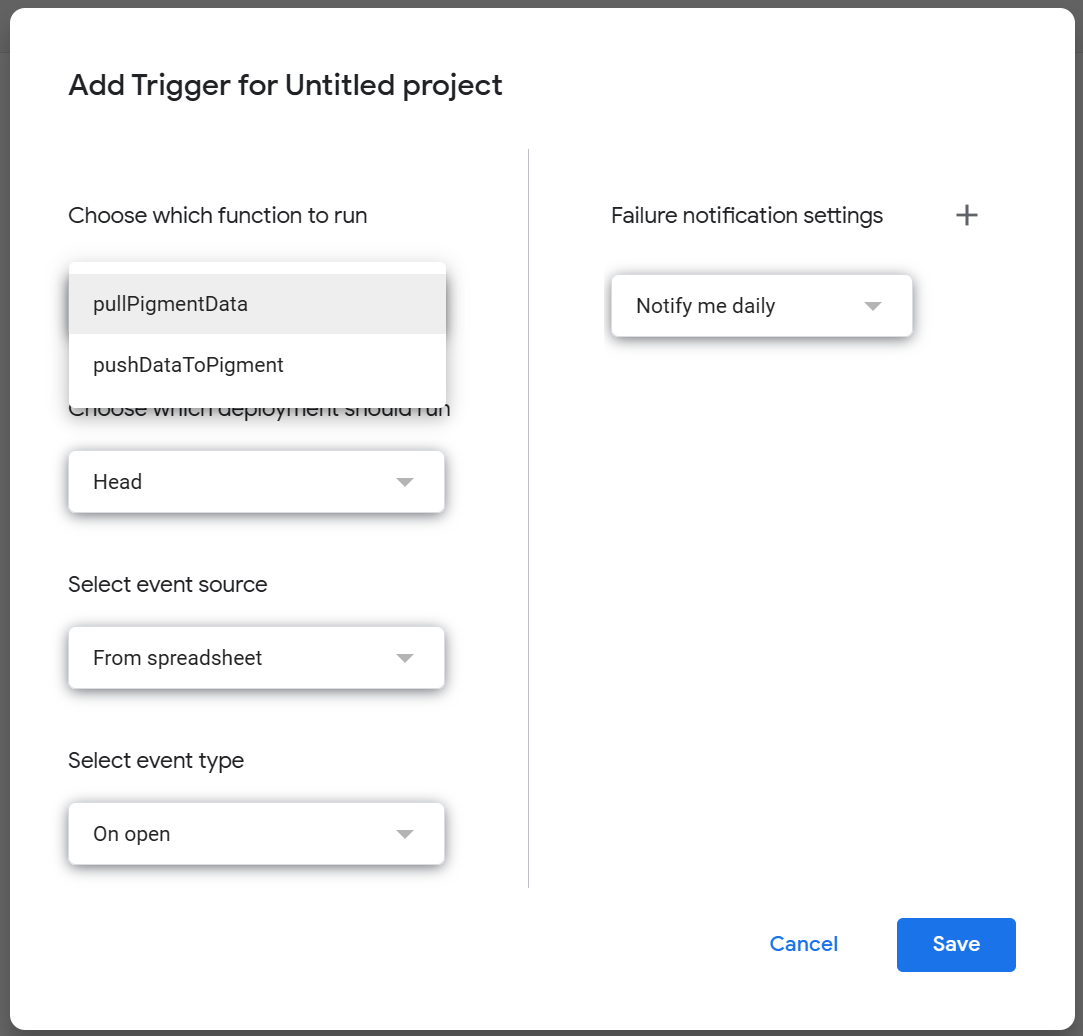
- In the Apps Script editor, click on the clock icon (Triggers) in the left sidebar.
- Click on Add Trigger.
- Choose the function you want to run (eg. pullPigmentData or pushPigmentData).
- Select the deployment (Head).
- Choose the event source (Time-driven).
- Set the type of time-based trigger (e.g., Hour timer).
- Configure the frequency (e.g., Every hour).
- Click Save.
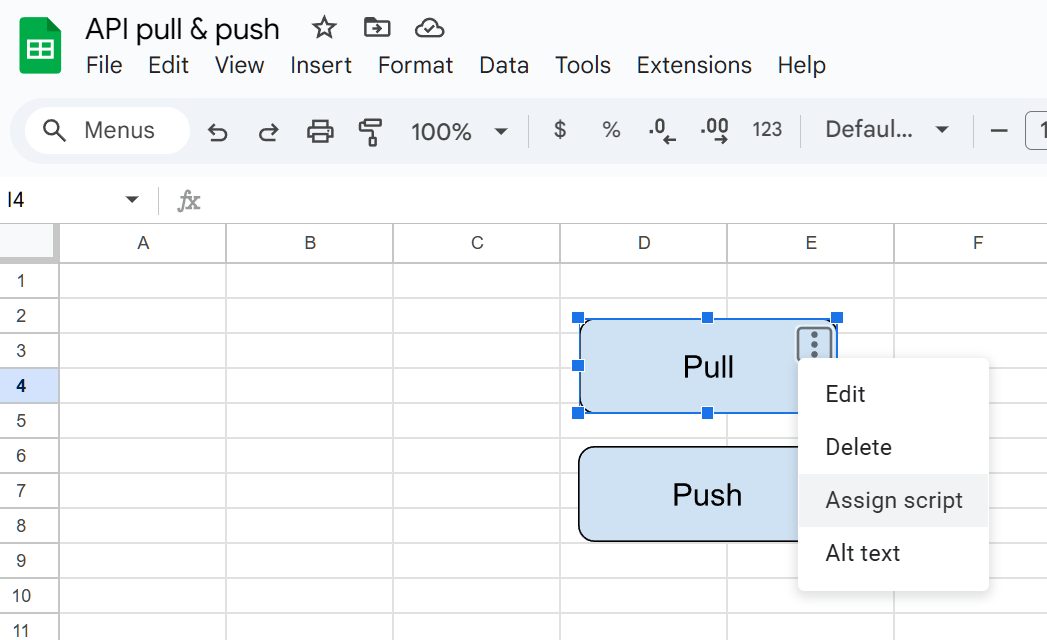
These functions can be called via ‘buttons’ on a GSheet, you simply need to draw the button, place on the GSheet and assign the respective function, for example:
I hope this helps!
Note: API rate limits in effect: