




Using Subsets Safely in Pigment: A Best Practice Guide
The Subsets feature was recently released in Pigment and it is a powerful addition, especially for advanced users who build complex models. We recommend reading the official documentation to familiarise yourself with this feature.
Why This Approach Matters
As with any powerful feature, the key lies in how, and when, you use it.
This guide details how to leverage formula-driven subsets without losing input data in metrics that use a subset as a dimension. This is especially important if:
-
You expect frequent changes to the logic that determines your subset.
-
You're making manual inputs in a metric that uses a subset as a dimension.
⚠️ If your subset-dimensioned metrics only contain formulas (no manual inputs), you don’t need this setup.
The Scenario
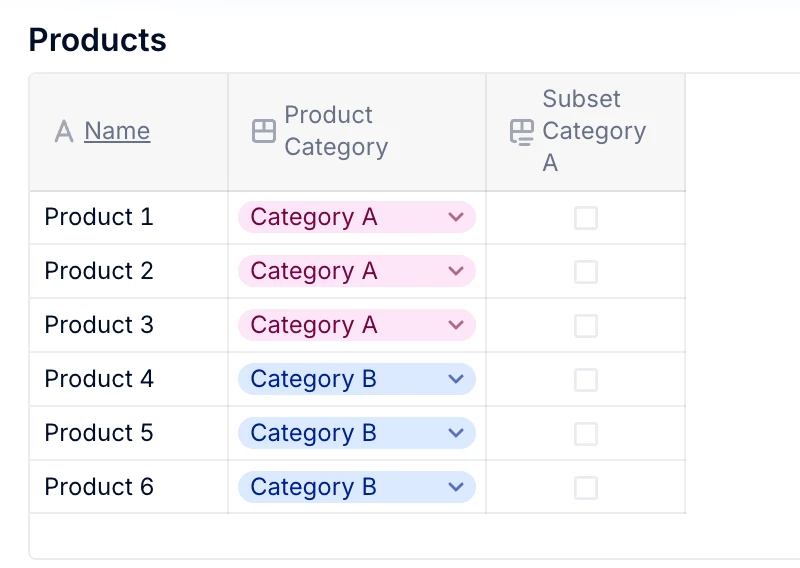
Let’s say you have a parent list called Product, and you want to create a subset containing only products in Category A.
We’ll walk through how to:
-
Define the logic that identifies which products belong to Category A.
-
Prevent unintended data loss by breaking the live formula link.
-
Use a metric-to-metric import to control when the subset updates.
Step-by-Step Setup
✅ Step 1: Create Two Metrics
Create two metrics, both dimensioned by the Product list:
-
CALC_Subset: holds the logic for determining if a product belongs in the subset. -
STORE_Subset: stores the actual values used to drive the subset.
✅ Step 2: Write the Subset Logic
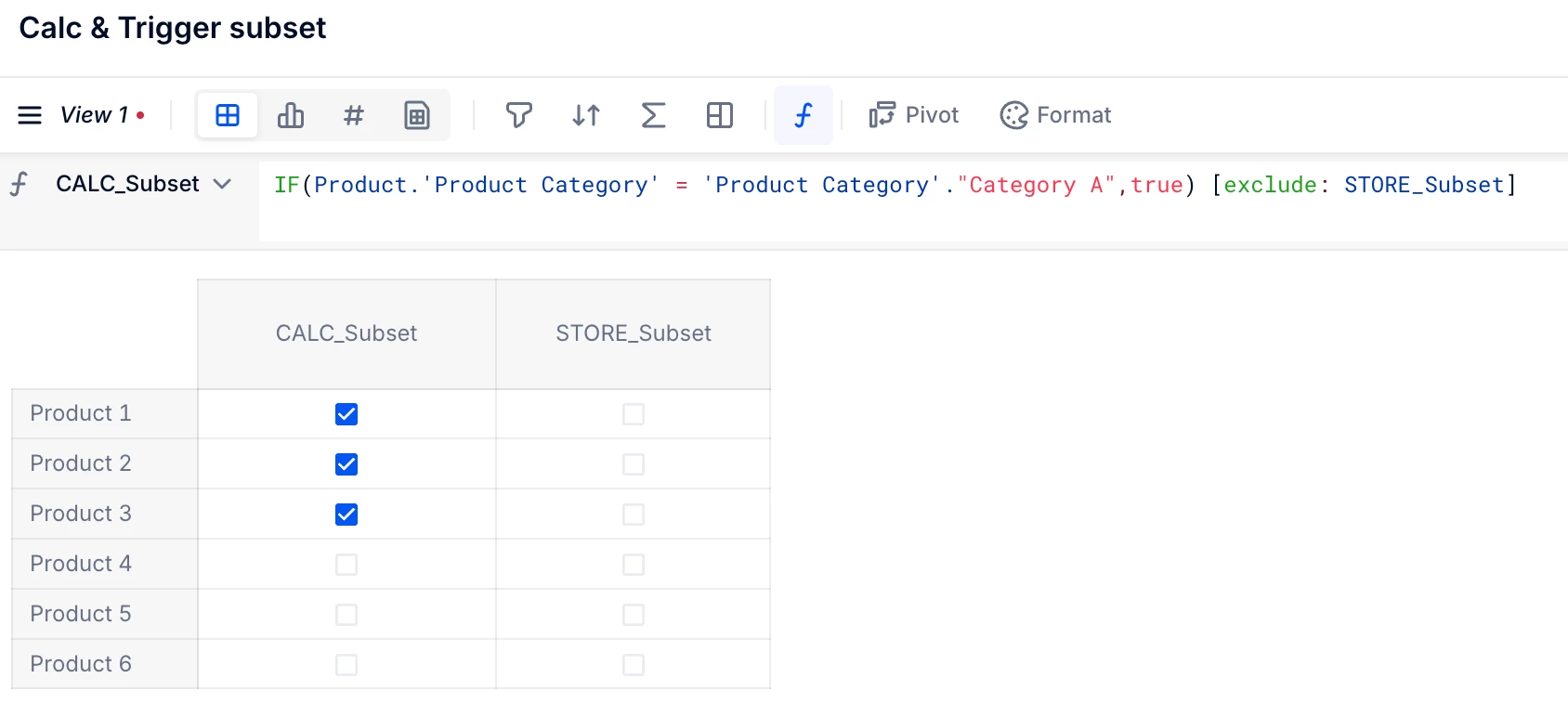
In CALC_Subset, add the following formula (adapt it for your use case). The EXCLUDE ensures the formula only applies to new items and does not overwrite already existing entries in STORE_Subset.
IF(
Product.'Product Category' = 'Product Category'."Category A"
,TRUE
)
[EXCLUDE: STORE_Subset]
✅ Step 3: Import from CALC to STORE
Set up a metric-to-metric import from CALC_Subset to STORE_Subset.
🔒 Make sure “Clear values before import” is turned OFF. This is crucial to avoid deleting existing entries.

✅ Step 4: Connect STORE to the Subset
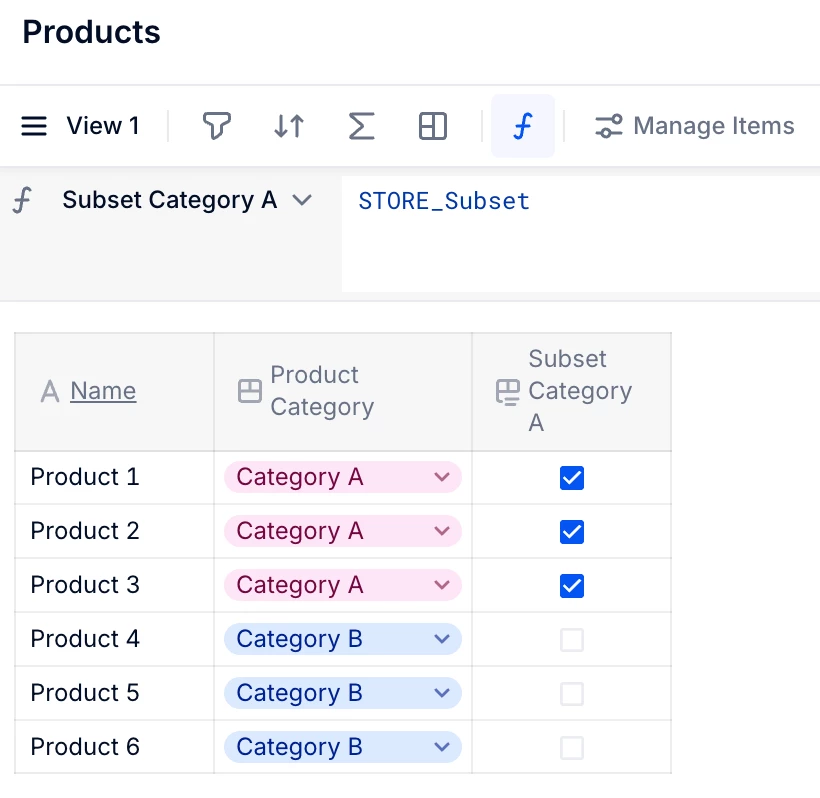
Link the STORE_Subset metric to the Subset in the Product dimension. Then publish everything—including the import—on a board. Optionally, schedule the import to run automatically.
What Happens Next?
-
When a product is newly assigned to Category A, it will be added to the subset on the next import.
-
If a product is later reassigned out of Category A, it won’t be removed automatically—preserving any manual inputs tied to it.
-
You can still manually remove a product by unticking the boolean in
STORE_Subset.
For example:
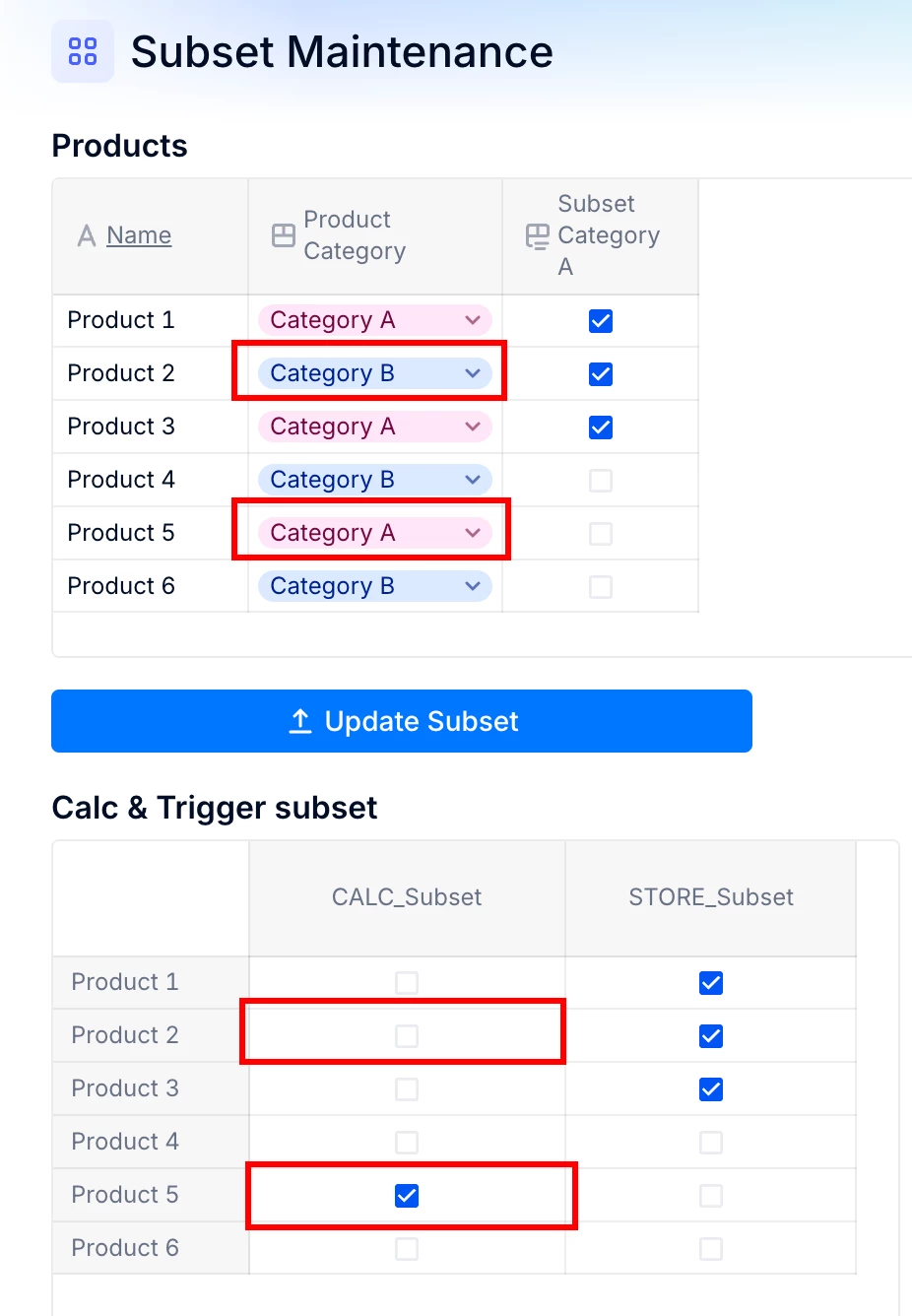
Add Product 4 to Category A → it gets included in the subset after import.
Change Product 2 from Category A to B → it stays in the subset until manually removed.
Summary
This method gives you the flexibility of formula-driven subsets for adding new items to the subset while keeping a manual intervention for deletion of items from the subset. It’s ideal for dynamic environments where subset logic might change over time, and where maintaining data integrity is key.