

Question

In the same board : Automatically manage MTD / YTD / FY time aggregations, together with organisational / consolidated aggregation for different type of data (volumes/financials, stocks, average/ratios, calculated metrics, ....)

  • March 16, 2026
  • 1 reply
  • 23 views

Forum|alt.badge.img+1

Automatically manage MTD / YTD / FY time aggregations, together with organisational / consolidated aggregation, for the following data types:

  • “Stock” typeMTD: monthly value, YTD: same as MTD, FY: value of the last forecast month of the year

  • “Weighted average” typeMTD: monthly value, YTD: average of YTD months (excluding blank values), FY: average of the 12 months of the year

  • “Volume” typeMTD: monthly value, YTD: sum or average from the beginning of the year, FY: sum or average over the full forecast year

  • “Calculated” type – calculated based on other data from the same period or from other periods; the metric must follow the Monthly formula logic

  • “Variance” type – calculated as the difference or percentage change versus the selected comparison scenario
1 reply

Forum|alt.badge.img+2
  • Trendsetter
  • April 10, 2026
  • “Stock” type – 
    MTD: monthly value - This would be the default value as per the logic for the month
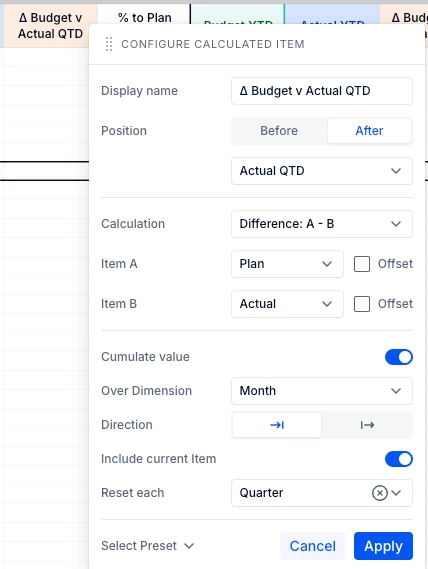
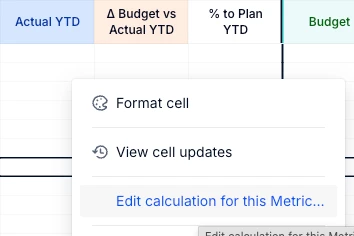
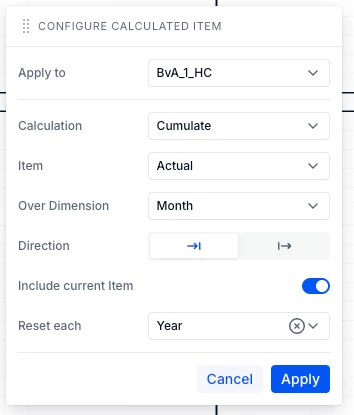
    YTD: same as MTD - Edit calculation logic for the column and set to cumulate over months


    FY: value of the last forecast month of the year - Use the stock summary option to set to “LAST NONBLANK”
     

  • “Weighted average” type – 
    MTD: monthly value - This would be the default value as per the logic for the month
    YTD: average of YTD months (excluding blank values) - This is not possible yet in the calculated column logic
    FY: average of the 12 months of the year - Use the stock summary option to set to “AVERAGE”
     

  • “Volume” type – 
    MTD: monthly value -  This would be the default value as per the logic for the month
    YTD: sum or average from the beginning of the year - Sum is possible as explained above
    FY: sum or average over the full forecast year  - Use the stock summary option to set to “AVERAGE” or “SUM”
     

  • “Calculated” type – the metric must follow the Monthly formula logic - The Calculated cell logic only has a certain list of presets which can be used
     

  • “Variance” type – calculated as the difference or percentage change versus the selected comparison scenario - You can create a Calculated Item column which is a difference and then you can use that Variance calculated column to define % change