Hi Adélaïde,
I dug into both of these in the add-in, so this is from testing, not guesswork.
Can different sheets connect to different workspaces? No. The workspace is bound to the whole file, not to a sheet, and not just to your login. Once a single connection exists, the file belongs to that workspace. Sign in under a different one and the connector blocks everything with "This file is connected to another Workspace" and only offers Switch Workspace. So one file with a Dev connection on one tab and a Prod connection on another isn't possible. One file per workspace.
Moving a file to another workspace is the part you were hitting. The catch: you can only change a file's workspace when it has zero connections. While even one connection is still there, the file stays pinned, and Switch Workspace just drops you back where you were. That's the loop.
There are two ways to clear it, and they aren't the same. The first is to delete the connections in the connector panel, three dots then delete, until none are left, then switch. This works, but it also clears the data those connections pulled, because when the pivot collapses the add-in wipes its content. The KB says as much: https://kb.pigment.com/docs/troubleshoot-connector-excel
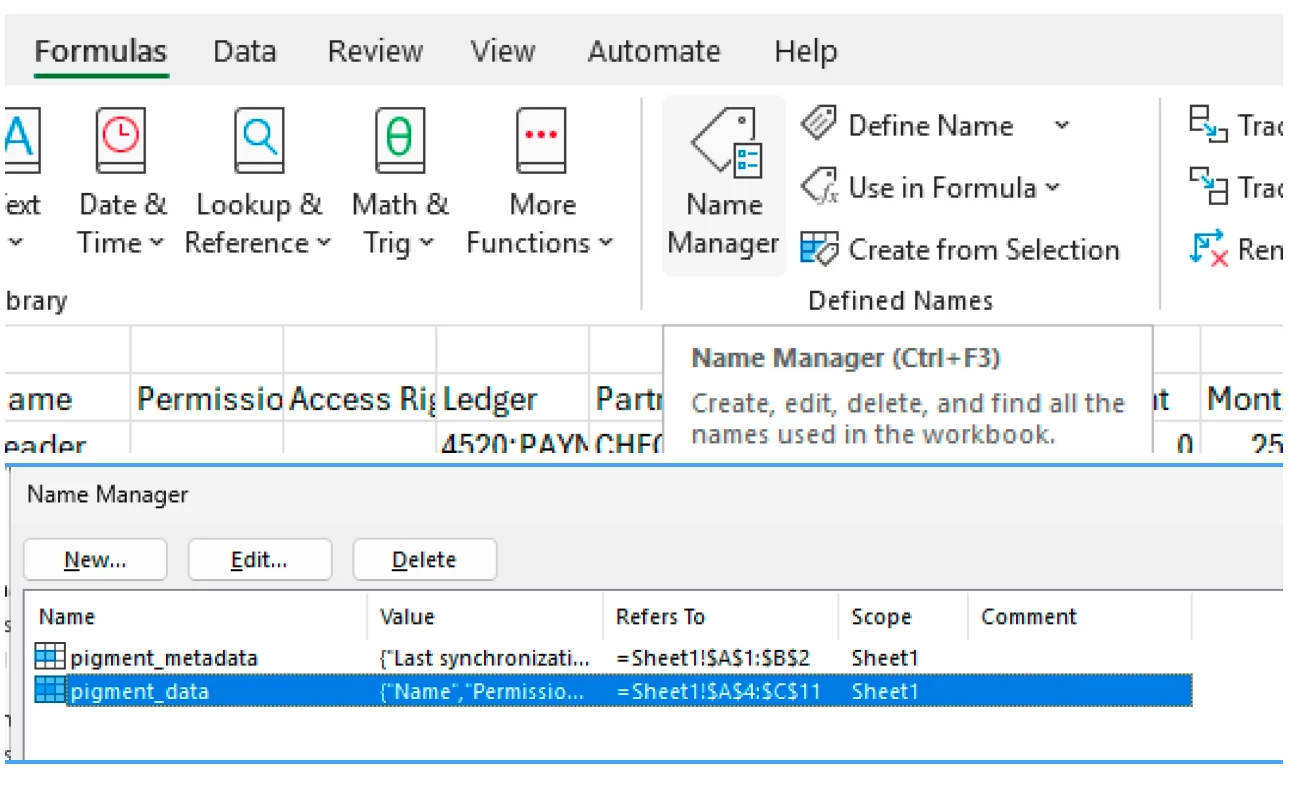
The second keeps your data on the sheets. Don't touch the panel. The connection config lives inside the file as two named ranges, so open Formulas, then Name Manager, delete the two entries called pigment_data and pigment_metadata, save, close Excel fully, and reopen under the workspace you want. The file forgets the old workspace and your pulled data stays put.
That named-range detail is also why deleting connections in the sidebar sometimes leaves a file still connected to something. The config is in the file, not in Pigment. See the connection setup page too: https://kb.pigment.com/docs/connect-excel . If a file ever gets truly stuck, Name Manager is the first place to look, and worst case you paste the sheets as values into a fresh workbook and rebuild.
On the missing filter page, that one's just a UI quirk and it's documented. Page selectors don't show on the All connections screen. Open an individual connection first, back arrow at the top left of the panel, and they appear under Pages Settings. Same troubleshooting article, "Why can't I see my page selectors?".
One habit worth keeping. Because the add-in wipes the last rows and columns around a pivot when it shrinks, keep connection sheets clean, nothing but the pull. Put side calculations on a separate sheet that references the pull sheet, so a refresh can't eat them.
If per-file workspace switching without losing data ever becomes a real need, that's worth posting here: https://community.pigment.com/ideas